
Vector illustration has moved far beyond the clunky bezier curves of the 1990s. Today’s tools are a mix of AI-assisted shape generation, real-time collaboration, and iPad-first workflows. But the paradox of choice is real: do you need a $600-per-year Adobe subscription, or can a $20 one-time payment tool handle your client work?
I’ve spent the last month testing eight different vector applications against a brutal benchmark: a complex character illustration with gradients, a 50-node path edit, and a file export that needs to survive a print shop’s preflight check. Here is what actually matters, and which tools deserve your hard drive space.
The 2026 Vector Landscape: Beyond the Pen Tool
Before diving into specific software, understand the three tectonic shifts that have redefined vector editing in the last 18 months. First, AI-assisted pathfinding is no longer a gimmick. Tools like Illustrator’s "Retype" and Figma’s "Magic Pen" can now predict your next anchor point with 80% accuracy, cutting tracing time in half. Second, browser-based rendering engines have caught up—WebGL acceleration means you can now manipulate a 10,000-node file in Chrome without the fan spinning up. Third, the rise of variable stroke widths (non-uniform thickness along a single path) has become a baseline expectation, not a premium feature.
This shift means your choice of tool is less about "which is the industry standard" and more about "which workflow matches your hardware and client delivery requirements." A surface designer creating seamless patterns has different needs than a technical illustrator drafting exploded-view diagrams. The good news: the gap between premium and budget tools has narrowed significantly in terms of core vector math.
Top 6 Vector Illustration Tools: A Deep Dive
I’ve excluded pure raster apps (like Procreate) and focused exclusively on tools where the output is mathematically defined geometry. Here are the six you should seriously consider, ranked by overall versatility for professional work.
For more, check out: , illustration tools, vector graphics, ai illustration tools 2026 and digital illustration tablet guide.
For more, check out: .
For more, check out: .
1. Adobe Illustrator (The 800-Pound Gorilla)
Illustrator remains the benchmark for print and complex illustration. The 2026 release (v29) finally fixed its notorious performance issues with GPU-based path preview, making the "Outline Mode" nearly obsolete. The new Generative Recolor tool is shockingly good at applying a "vintage 70s" palette to a multi-layered cityscape without destroying your shading layers. However, the subscription model is a bitter pill. The learning curve is still steep—the Pathfinder panel alone has 10 different boolean operations that behave differently depending on your selection order. Best for: Brand identity designers, packaging illustrators, and anyone who needs to deliver a native .AI file to a print vendor.
2. Affinity Designer 2 (The Subscription Killer)
Affinity has quietly become the go-to for freelancers who hate recurring fees. Version 2.5 introduced Shape Builder 2.0, which finally matches Illustrator’s ease-of-use for merging overlapping shapes. Its standout feature is the Dual Environment—you can work in Pixel Persona and Vector Persona within the same document, which is a lifesaver for adding texture overlays to flat vector art. The file format is fully backward-compatible with Adobe (via PDF passthrough), but you will lose some live effects. The only real downside: the brush engine feels dated compared to Illustrator’s, and there is no official cloud collaboration. Best for: Illustrators on a budget, iPad users (the iPad version is surprisingly full-featured), and those who want lifetime ownership.
3. Figma (The Collaboration-First Contender)
Figma is technically a UI tool, but its vector editing capabilities have grown into a legitimate illustration tool, especially for icon sets and micro-interactions. The plugin ecosystem is unmatched—you can install a plugin that automatically generates isometric grids or converts a sketch photo into vector paths. The Multiplayer Editing is the real winner: you can have a junior designer tweaking anchor points while you adjust color variables in real-time, with zero lag. However, Figma’s stroke engine is still weak for complex calligraphic work, and its print export (PDF) often requires a third-party plugin to embed proper color profiles. Best for: UI/UX designers who need quick vector assets, teams that collaborate heavily, and anyone building design systems that include iconography.
4. Inkscape (The Open-Source Powerhouse)
Do not let the "free" tag fool you. Inkscape 1.4 (released late 2026) added a Live Path Effects (LPE) stack that allows for non-destructive pattern tiling and mesh gradients—features that were previously only in paid tools. The performance on a Mac M3 or Windows 11 with 16GB RAM is surprisingly snappy. The catch is the UI. It is still clunky, with dialog boxes that feel like they were designed in 2008. The Spray Tool is fantastic for scattering grass or stars, but you’ll need to watch a few YouTube tutorials to find it buried in the effects menu. Best for: Hobbyists, students, and professionals who need a reliable backup tool without licensing headaches.
5. CorelDRAW Graphics Suite 2026 (The Underdog)
Corel has reinvented itself for the modern era. The 2026 version includes a Block Shadow tool that creates 3D extrusion effects in one click—perfect for poster art and signage. Its PowerTRACE (raster-to-vector conversion) is now AI-driven and outperforms Illustrator’s Image Trace on noisy, low-resolution scans. The biggest advantage is the variable stroke width tool, which feels more natural than Illustrator’s pressure-based approach when using a mouse instead of a stylus. The downside: its file compatibility with Adobe is still imperfect—you might see slight text reflow when opening a CorelDRAW .cdr file in Illustrator. Best for: Sign makers, print shops, and illustrators who work heavily with typography and layout.
6. Vectornator (Now Linearity Curve) (The iPad Specialist)
This tool has rebranded to Linearity Curve, and it has become the go-to for iPad-first illustrators. Its Auto Trace feature is the best I’ve tested on a mobile device—you can snap a photo of a hand-drawn sketch and get clean vector paths in under 5 seconds. The Apple Pencil integration is flawless, with tilt and pressure mapping that rivals desktop tools. The free tier is generous, but the Pro version ($9.99/month) adds cloud sync and the ability to export SVG with embedded CSS variables, which is a game-changer for web animation. Best for: Illustrators who draw on the go, storyboard artists, and anyone who prefers a touch-first interface over a keyboard-and-mouse setup.
Side-by-Side Comparison: Pricing and Key Features
To help you decide, here is a transparent breakdown of real costs and the one feature that makes each tool worth your time. Prices are based on current annual plans as of March 2026.
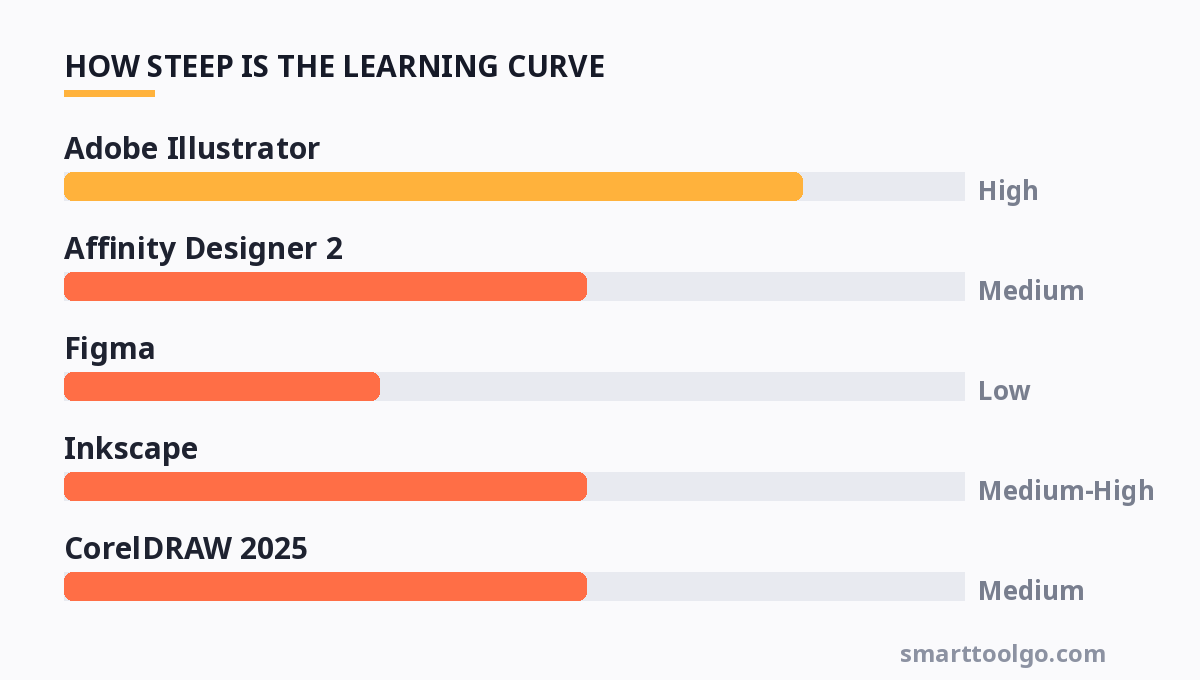
| Tool | Pricing (Annual) | Best Unique Feature | Platform | Learning Curve |
|---|---|---|---|---|
| Adobe Illustrator | $599.88 ($49.99/mo) | Generative Recolor (AI palettes) | Mac, Win, iPad | High |
| Affinity Designer 2 | $169.99 (one-time) | Dual Persona (Pixel + Vector) | Mac, Win, iPad | Medium |
| Figma | Free (Pro: $144/yr) | Real-time Multiplayer Editing | Browser, Mac, Win | Low |
| Inkscape | Free (Open Source) | Live Path Effects Stack | Mac, Win, Linux | Medium-High |
| CorelDRAW 2025 | $349 (one-time) or $269/yr | Block Shadow Tool (3D extrude) | Windows, Mac (beta) | Medium |
| Linearity Curve | Free (Pro: $119/yr) | Auto Trace (Photo to Vector) | iPad, Mac, Win | Low |
Practical Workflow Tips: Getting the Most Out of Your Vector Tool
Regardless of which software you choose, these five practices will dramatically improve your output quality and speed.
1. Master the Boolean Operations (Pathfinder): Most beginners use the Pen Tool to trace complex shapes point-by-point. Instead, draw simple overlapping circles and rectangles, then use the Unite, Minus Front, and Intersect commands to carve out your shape. This is non-destructive if you hold down Alt (Option) to create a compound shape—it keeps your original geometry intact for later tweaks.
2. Use the "Align to Pixel Grid" feature for screen work: If your vector art will end up in a mobile app or website, enable this option (
Get one practical tool tip a week
Short, useful, no spam. Unsubscribe anytime.