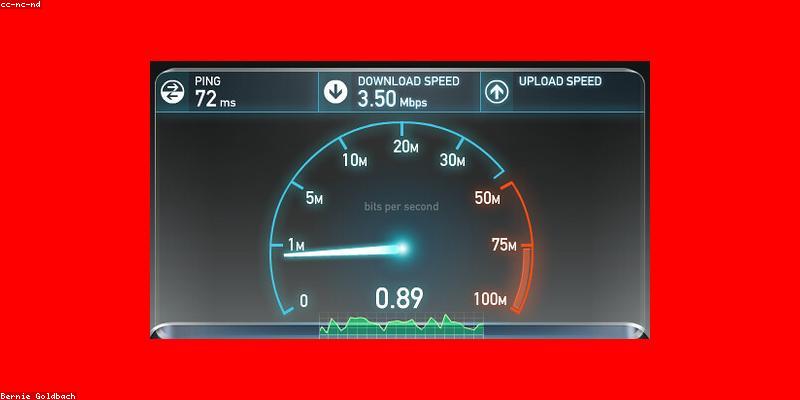
Most people run one speed test, watch the download number, and call it a day. That single number is the least informative metric on your network, and chasing it leads to real mistakes — buying a faster plan you do not need, blaming the wrong device, or paying for premium hardware that fixes nothing. Run a few tests the right way and you will discover that your "slow internet" is often a Wi-Fi placement problem, a congested band, or a device that quietly throttles itself, none of which a bigger cable plan solves.
This guide treats speed testing like a debugging process, not a single measurement. You will learn what each metric actually means, how to get a trustworthy reading, and how to tell the difference between a real ISP problem and a problem you can fix in fifteen minutes with no new subscriptions. The goal is not to find the fastest number you have ever seen; it is to get a stable number that reflects what your connection genuinely delivers under real load.
Why a Single Download Number Lies to You
Download speed is attractive because it is the biggest number on the screen, and it is the number every baseline test flaunts. But it tells you almost nothing about how your connection feels for the applications that matter — video calls, gaming, cloud rendering, and streaming all depend on a different mix of latency, jitter, and upload speed. A connection can show 500 Mbps down and still make your Zoom call stutter because the latency spikes every few seconds. That is why a single test, run once, from one device, is close to worthless.
The bigger trap is that your marketing package speed is a theoretical ceiling. Providers advertise "up to" speeds that no one reasonably achieves on a shared line at peak hours. If your plan says 300 Mbps and you measure 180 Mbps at 8pm on a Tuesday, you have not been cheated — you are seeing the reality of a shared cable or fiber line. Only when your speed drops far below what your area's normal range supports should you treat it as a problem worth escalating.
Know What Each Metric Actually Tracks
Before you run anything, learn the four numbers a proper test reports. Download speed tells you how fast data flows to you, which matters for streaming, downloads, and loading large pages. Upload speed tells you how fast data flows away, which matters for video calls, cloud backups, and sharing files. Latency, or ping, tells you the round-trip time to a server, which is the difference between a snappy page and a half-second lag on every click. Jitter measures how much that latency fluctuates, and it is the hidden culprit behind choppy calls and stuttering streams.
For most real work, latency and jitter are the numbers that make a connection feel good or bad, while download speed barely registers unless it collapses. Gaming wants low and stable latency. Video calls want low jitter and a decent upload. Cloud work wants steady throughput in both directions. If you are choosing between two plans and one has a slightly higher ceiling and the other has lower latency, the lower-latency option often feels faster for everyday use.
How to Run a Test That Actually Means Something
The reliability of any measurement depends on how you set it up. Run the test from a wired connection whenever possible, because Wi-Fi introduces variables you cannot control. Close every other application, pause downloads and updates, and make sure no other device on your network is saturating the pipe. Test against a server that is geographically close to you, because a distant server inflates latency and makes your connection look worse than it is.
Run the same test at least three times at different points in the day — a morning off-peak run, an evening peak run, and a weekend afternoon run — and record the results. Your "real" speed is the range across those runs, not any single value, and the spread tells you whether you have a congestion problem. If your numbers collapse only in the evening, you are almost certainly battling peak-hour demand on a shared line, which a faster plan may or may not fix depending on your provider.
Reading the Results Like a Network Engineer
Start with the health check: compare your measured speeds to your plan's advertised ceiling. If you are getting close on download but your upload is crawling, or your latency is high on a fiber line, those are abnormal patterns worth investigating. A wired fiber line should show stable, low latency, and if it does not, the problem is not traffic — it is your hardware, your router configuration, or a fault on the provider side.
Then look for the Wi-Fi culprit. Run the same test while connected over Wi-Fi and compare it to the wired result. If Wi-Fi is dramatically slower or wildly unstable, and your latency is high, the fix is often physical: move the router out of a closet or metal cabinet, check that it is not sitting next to a microwave or a thick concrete wall, and switch to the 5GHz band if your router supports it. Do not run out and buy a faster plan because your phone's Wi-Fi test looked bad from the bedroom — the bottleneck is almost certainly the wireless hop, not the line into your home.
The Device and App Layer Nobody Tests
Speed tests also get fooled by the very client you are running them on. Some browsers add extensions that rewrite traffic and slow downloads. Some laptops cap bandwidth in power-saver mode. Some VPNs route your traffic through a distant server and add dozens of milliseconds of latency. If your test suddenly looks terrible, disable the VPN, close browser extensions, and plug into Ethernet before you blame the internet connection.
The classic scenario is a device that throttles itself: a laptop saving battery that quietly caps throughput, or an old Wi-Fi adapter that cannot reach the speeds its neighbor's laptop hits with the same router. Run the same test from a second device to confirm. If one device is dramatically slower than the rest, the problem is that device — its wireless chip, its settings, or its age — and no amount of upgraded internet service is going to change it.
Picking the Right Test Tool for the Job
Not every speed test is equivalent, and the tool you choose changes what you measure. A browser-based test measures the path from that browser to a specific server, including whatever software sits between you and the pipe. A dedicated standalone test avoids some of that overhead and is closer to your raw line rate. If you want to isolate a Wi-Fi problem, run a tool that can test from the router itself, like router-based diagnostics, so you compare the wireless hop against the wired baseline.
Here is a comparison of a few free tools people actually use, with what each is best for and the real limits worth knowing before you trust a number.
| Platform / Tool | Key Features | Pricing |
|---|---|---|
| Speedtest by Ookla | Global server network, latency/jitter/upload/download, history of past results, mobile apps | Free to use; paid Speedtest VPN from ~$3.99/month |
| fast.com (Netflix) | Quick download-focused test, single-page interface, bare minimum | Free |
| Cloudflare speed test | Tests against Cloudflare edge, includes upload and latency, clean report | Free |
| Google Fiber speed test | Simple browser test, good for a quick general check | Free |
| Router-built-in diagnostics | Tests line speed without your PC in the path, isolates Wi-Fi issues | Free with most routers |
Use them as complementary tools, not rivals. Run a browser-based check like Ookla for a familiar baseline, then a click-once tool like fast.com when you just want a download number, and a router-based test when you are trying to isolate a Wi-Fi fault. The exact tool matters less than running it under controlled conditions and comparing a consistent baseline over time.
When Your Numbers Are Actually a Problem Worth Escalating
You should contact your provider only when the evidence points at their side of the line, not at your Wi-Fi, your device, or the time of day. That means a wired test showing a large and persistent drop below your plan's normal range, high latency or jitter on a wired fiber connection, or an outage pattern your neighbors confirm. Keep a log of your peak and off-peak measurements so you can hand the support agent concrete numbers instead of a vague "the internet feels slow."
If the wired test looks fine but Wi-Fi is bad everywhere, the problem is your wireless deployment, and a mesh router or a better access point position is a one-time fix worth far more than a monthly speed upgrade. If one device is slow and everything else is fine, replace or update that device. Only when the wired line genuinely underperforms should you treat this as an ISP issue, and at that point a documented speed log with dates and wired results makes the conversation far more productive. For more on building a stable, fast setup, see our guide to the productivity tools that keep workflows moving in 2026 and the broader roundup of AI tools that speed up daily tasks, plus our software comparison library, practical notes on free online productivity tools and the , and a Chinese-language overview of Chinese-language AI tools guide.
For more, check out: .
Frequently Asked Questions
My download speed is high but video calls still stutter — what is wrong?
High download speed does not fix latency or jitter, which are what make video calls smooth. Check your upload and your jitter score, and test over a wired connection. If jitter is high, move closer to the router, switch bands, and disable any traffic-heavy background apps. The fix is rarely your download plan.
Is my evening slowdown the result of my ISP throttling me?
Not necessarily. On shared cable and fiber lines, evening slowdowns are usually peak-hour congestion as neighbors saturate the same node, not deliberate throttling. Measure at multiple times across a few days and compare. If the drop is drastic, persistent, and confirmed on a wired test, then document it and escalate with your provider.
Should I trust the speed test on my phone?
Only as a rough indicator. A phone adds Wi-Fi distance, band selection, and background app activity into the reading. Use a phone test to screen for a big problem, then confirm any finding on a wired computer. If the phone says slow but wired is fine, the issue is your wireless, not your internet.
How fast does my connection actually need to be?
It depends on your workload, not on marketing. A solo user doing email and streaming can be comfortable at 50–100 Mbps. A family streaming in multiple rooms or someone doing cloud work needs more upload and steadier connection. Check latency and jitter for real-time apps, and only prioritize a higher download ceiling if you actually download or stream a lot simultaneously.
Do I need to pay for a speed test app or service?
Almost never. The free tools cover measured speed, latency, jitter, and history well enough to diagnose problems. Paid extras like a built-in VPN are separate features, not accuracy upgrades. Save your money for the actual fix — a better router, a repositioned access point, or a different plan — rather than a fancier measuring app.
Why is my "up to 1 Gbps" plan only measuring a fraction of that?
Because "up to" is a ceiling, not a guarantee, and your real speed depends on the shared line, your router, your Wi-Fi, and the test conditions. Test on a wired connection with nothing else running to find your true line rate, and compare it to your area's normal range rather than to the big number on the ad.
Get one practical tool tip a week
Short, useful, no spam. Unsubscribe anytime.