
Animation is no longer the exclusive domain of Hollywood studios or highly specialized 3D artists. Whether you are a UX designer prototyping a micro-interaction, a marketer creating an explainer video, or a developer adding subtle motion to a web interface, the right tool can be the difference between a weekend project and a months-long ordeal. The market is saturated with options, ranging from simple web-based drag-and-drop builders to complex node-based motion graphics suites. This article cuts through the noise to compare the best animation tools available today, focusing on real pricing, practical workflows, and specific use cases.
The Great Divide: Vector vs. Raster vs. Code-Based Animation
Before diving into specific software, it is crucial to understand the fundamental technical differences that dictate which tool you should choose. Vector animation (like Adobe Animate or Lottie) relies on mathematical curves, making files infinitely scalable and generally lightweight. This is ideal for UI elements, icons, and character rigs that need to render crisply on any screen size. Raster animation (like Procreate Dreams or traditional frame-by-frame in Photoshop) works with pixels, offering a painterly, organic aesthetic but resulting in larger file sizes that do not scale up well without losing quality.
On the other end of the spectrum is code-based animation (GSAP, CSS, or After Effects with Bodymovin). This approach gives developers granular control over physics, timing, and interactivity. While the initial learning curve is steeper, the output is often the most performant for web use. The tool you choose should align with your final output: a video file for social media, an interactive Lottie JSON for a mobile app, or a self-contained HTML5 canvas for a website hero section. Let’s look at how the leading tools stack up against these criteria.
Head-to-Head: The Best Animation Tools for 2026
To provide a clear overview, here is a comparison table of the most prominent tools currently dominating the market. These prices reflect the current standard billing tiers as of late 2026, and they are subject to change based on regional taxes and promotional offers.
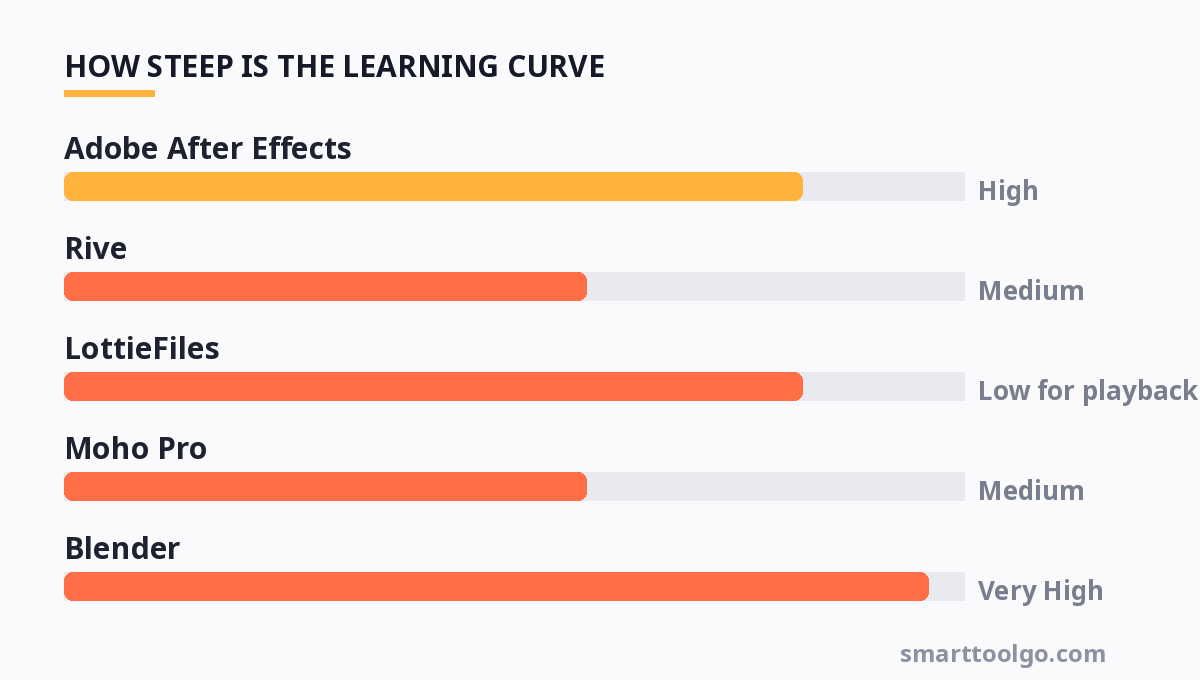
| Tool | Best For | Pricing (Starting) | Output Type | Learning Curve |
|---|---|---|---|---|
| Adobe After Effects | Motion graphics, VFX, complex compositing | $22.99/mo (Annual plan, paid monthly) | Video, Lottie (via plugins), MP4 | High |
| Rive | Interactive UI, game assets, real-time animation | Free (Creator), $15/mo (Pro) | Rive runtime, Lottie, Video | Medium |
| LottieFiles | Web/iOS/Android developers, designers | Free (Basic), $12/mo (Pro) | Lottie JSON, GIF, WebM | Low (for playback), High (for creation) |
| Moho Pro | 2D character animation and rigging | $399 (Perpetual License) | Video, Sprite sheets | Medium |
| Blender | 3D modeling, sculpting, and full 3D animation | Free (Open Source) | Video, glTF, USD | Very High |
| Jitter | Quick social media motion graphics | Free (Watermarked), $20/mo (Pro) | Video, GIF | Low |
This table highlights a crucial point: price is rarely the deciding factor. The real differentiator is the workflow. For example, if you are a solo marketer needing quick Instagram stories, paying for After Effects is overkill when Jitter can produce similar results in a fraction of the time. Conversely, if you are building a complex product demo with interactive state changes, Rive offers capabilities that Jitter simply cannot match.
Rive: The Rising Star for Interactive Interfaces
Rive has gained significant traction in the tech community for its unique approach to animation. Unlike traditional timeline-based tools, Rive operates on a state machine logic. This means you can define "states" (e.g., hover, pressed, idle) and the transitions between them. This is revolutionary for UX designers because it allows for animations that react to user input in real-time without writing a single line of code.
For teams that rely on design handoff, Rive eliminates the "it works in Figma" problem. You can design, animate, and implement within the same ecosystem. The runtime is highly optimized, rendering at 60fps even on low-end mobile devices. However, the downside is that Rive is not suited for frame-by-frame or traditional linear storytelling. It is a tool for functional animation, not cinematic narrative. If you need to create a character walking across a screen with secondary motion, you would be better served by a more traditional tool like Moho or After Effects.
After Effects: The Industry Standard and Its Heavy Weight
Adobe After Effects remains the 800-pound gorilla in the room. It is the tool used to create the vast majority of the motion graphics you see in commercials, film titles, and YouTube intros. Its plugin ecosystem is unmatched—from Trapcode Particular for particle effects to Duik for advanced character rigging. The integration with other Adobe products like Photoshop and Illustrator is seamless, allowing for a smooth pipeline from static design to motion.
However, this power comes at a cost. The subscription model is a recurring expense that many freelancers resent. More importantly, the learning curve is brutal for beginners. The interface is dense, and the concepts of keyframing, easing, and expressions can take months to master. Furthermore, After Effects files are heavy; a complex project can slow down even the most powerful workstations. For those looking to create lightweight web assets, exporting to Lottie requires third-party plugins (like Bodymovin), and not all effects translate cleanly to the JSON format. It is a professional tool for professionals, but for casual users, it can quickly become a time sink.
Moho Pro: The Unsung Hero of 2D Character Animation
If your focus is specifically on 2D character animation—think shows like "Hazbin Hotel" or indie animated shorts—Moho Pro is a powerhouse that often gets overlooked in favor of Adobe's suite. Moho offers a bone-rigging system that is arguably more intuitive than After Effects' native tools. It supports vector and bitmap layers, giving you the flexibility to animate hand-drawn textures without losing the ability to manipulate them via bones.
One of Moho's standout features is the "Smart Warp" and "Magnetic Mesh" tools, which allow for complex facial deformations and cloth simulations without the need for external plugins. Unlike subscription-based models, Moho offers a perpetual license, meaning you buy the software once and own it forever. This is a massive advantage for freelancers who want to avoid recurring costs. The main downside is its user base; because it is not as ubiquitous as After Effects, finding tutorials and community support is harder. But for the price, it offers arguably the best 2D character animation toolkit available.
Streamlining Content Creation: Beyond the Animation Tool
While mastering an animation tool is essential, the workflow around it often determines your efficiency. Creating an animated explainer video or a promotional clip rarely starts with the animation software itself. It begins with storyboarding, copywriting, and asset creation. Many animators find that integrating their workflow with templates for social media or static design tools saves significant time.
For instance, if you are animating a promotional video for Instagram, you will need a consistent brand kit. Using pre-designed Social Media Kit Templates can give you a head start on the static elements, ensuring your typography and color palette are consistent before you even open your animation software. Similarly, if your animation involves 3D text intros or logos, generating these assets can be a bottleneck. Instead of modeling text from scratch in Blender, you can utilize 3d Text Generators to create high-quality assets in minutes, which you can then import into your compositor.
Furthermore, if you are creating an animated infographic or data visualization, it is often more efficient to build the static chart in a dedicated tool and then animate the layers. Tools like Infographic Makers allow you to export transparent PNGs or vector files that are perfectly layered, ready to be rigged and animated in After Effects or Rive. This modular approach—using the best tool for each specific task—is the hallmark of a professional workflow. It reduces render times and keeps your animation software focused on what it does best: motion.
Blender: The Free Giant for 3D and Beyond
No discussion about animation tools is complete without mentioning Blender. As a completely open-source software, it has evolved from a niche hobbyist tool into a legitimate competitor to Autodesk Maya and Cinema 4D. Blender is not just for 3D modeling; its Grease Pencil feature allows for 2D animation within a 3D space, and its video sequencer is robust enough for basic editing. The release of Blender 4.0 and beyond has introduced even more sophisticated simulation tools for cloth, smoke, and fluid.
The primary barrier to entry is the interface. Blender is infamous for its non-standard UI and right-click-centric navigation. However, the community is massive. There are thousands of free tutorials, and the add-on market is thriving. For cash-strapped startups or students, Blender offers a path to professional-grade 3D animation for $0. The trade-off is time; you will spend far more hours learning the software than you would with a paid, more intuitive tool. But for those willing to invest the time, Blender is the highest-value tool on this list.
Learning Curve: Which Tool Gets You to Output Fastest
Beginners waste weeks on tools designed for professionals. If your goal is a short social animation this weekend, a browser-based tool with pre-built rigs will get you there in hours. If you want to ship a product onboarding animation, Rive or a simple vector tool is the right call. If you are serious about character animation, Moho Pro has a steeper initial climb but faster long-term output than After Effects for 2D work. The rule: choose the most limited tool that can still do the job. You can always upgrade; you cannot unlearn bad habits built while fighting an overcomplicated interface.
Choosing the Right Tool: A Practical Framework
To decide, ask yourself three questions. First: What is the final output? If it is a video file for YouTube, After Effects or Blender are safe bets. If it is a tiny, scalable icon for a website, LottieFiles or Rive is superior. Second: What is my timeline? If you need something done today, a browser-based tool like Jitter or a template library is your best friend. If you have three months, learning the intricacies of a professional tool is feasible. Third: Who is the audience? An interactive dashboard for engineers will require a different aesthetic than a whimsical cartoon for children.
Do not fall into the trap of "tool hoarding." Downloading every free trial available dilutes your focus. Instead, pick one vector-based tool (Rive or After Effects) and one 3D tool (Blender) to learn deeply. Master the principles of easing, anticipation, and squash-and-stretch. The software is just a vehicle; the principles of motion are what make your work feel professional.
For more, check out: and logo animation tools 2026.
For more, check out: .
For more, check out: .
Frequently Asked Questions
1. What is the easiest animation tool for beginners?
For absolute beginners with no prior experience, Jitter and Rive are the most accessible. Jitter offers a Canva-like interface where you can animate text and shapes by simply dragging sliders. Rive has a slightly steeper learning curve due to its state machine logic, but its visual editor is clean and well-documented. Avoid starting with After Effects or Blender, as their complex interfaces can be discouraging. Start with a tool that gives you a "win" within the first hour to build momentum.
2. How do I export animations for web use without hurting performance?
For web use, you should avoid exporting large MP4 files if you can help it. Instead, target the Lottie JSON format (via Bodymovin in After Effects or directly in Rive). Lottie files are vector-based, meaning they are incredibly small (often 5-10KB) and scale perfectly on retina displays. If you need a video, use WebM format instead of MP4, as it provides better compression. Also, ensure you are using the "cubic-bezier" easing functions in code instead of relying on heavy frame-by-frame data.
3. Can I use AI to create animations?
Yes, but with caveats. AI tools like Runway ML
Get one practical tool tip a week
Short, useful, no spam. Unsubscribe anytime.