
Your logo is often the first impression your brand makes, but a static image is like a firm handshake that never lets go. It’s memorable, sure, but a bit awkward. Logo animation tools transform that static mark into a dynamic introduction, a loading screen, or a sign-off that breathes life into your identity. Whether you’re a freelancer looking to wow clients or a startup founder trying to elevate a brand, the right tool can make the difference between a cheesy GIF and a polished motion graphic. The market is crowded, though, and the pricing is all over the place. Here’s a breakdown of the best options, what they actually cost, and how to pick the one that doesn’t make you want to pull your hair out.
Why Animate Your Logo in the First Place?
Before we dive into the software, let’s get one thing straight: animation isn't just for the sake of looking fancy. In a digital landscape where users scroll past static content in milliseconds, motion acts as a visual anchor. A well-executed logo animation can increase brand recall by up to 15% because your brain is wired to notice movement. It also serves a functional purpose—think of how a subtle bounce on a loading screen reduces perceived wait time, or how an animated intro sets the tone for a video. If you are creating content for platforms like YouTube or TikTok, a consistent animated intro is non-negotiable for professionalism. It signals that you’ve invested in your polish, which psychologically primes viewers to trust your product. If you are looking to pair your new animation with fresh visual content, you might want to check out this Ai Art Prompts Guide to generate cohesive backgrounds and textures.
The Heavyweights: Professional Motion Graphics Suites
If you are serious about motion design and have the time to learn a steep curve, these are the industry standards. They offer total control over every keyframe, easing function, and particle effect. The trade-off? They are expensive and require a significant time investment.
Adobe After Effects
After Effects (AE) is the undisputed king of the hill. It is the go-to for professional animators because of its robust plugin ecosystem (think Newton, Duik, and Motion Tools) and its seamless integration with other Adobe apps. You can create anything from a simple 3D extrusion to a complex liquid logo reveal. However, the subscription model is a recurring cost, and the learning curve is brutal. You won't be animating a logo in an afternoon unless you follow a lot of tutorials.
Blender
Blender is the free, open-source giant that has become a legitimate contender. While it is primarily a 3D modeling tool, its Grease Pencil and shader nodes allow for stunning 2D and 3D logo animations. The best part? It’s completely free, and the community support is massive. The downside is that the interface is notoriously cluttered, and for a simple 2D logo animation, it’s like using a flamethrower to light a candle. You’ll spend more time fighting the UI than actually animating.
The Mid-Tier: Bridging the Gap Between Power and Usability
These tools are perfect for designers who know their way around creative software but don’t want to script expressions in JavaScript. They offer a visual approach to animation that is faster and more intuitive.
Motion Array (After Effects Templates)
Here’s a secret: most professional logo animations aren’t created from scratch. They are customized templates. Motion Array offers a subscription service that includes thousands of After Effects templates specifically for logo reveals. You download a template, drop in your logo, change the text, and hit render. It’s fast, efficient, and yields professional results if you know how to tweak the color grading. This is the "smart" way to use After Effects without actually being an AE wizard.
Rive
Rive is a newer, web-focused tool that is changing the game for interactive motion. Instead of rendering a video file, Rive exports animations as lightweight, interactive files that can be embedded directly into websites and apps. This is perfect for animated icons, loading screens, and logos that react to user hover states. It’stake on the animation timeline is visual and much easier to grasp than AE’s node-based system. The free tier is generous, but you’ll need a paid plan for commercial branding and to remove watermarks.
The Quick & Dirty: Online Logo Makers and Intuitive Apps
If you need a logo animation for a social media post *today* and you don’t have time to learn keyframes, this is your category. These tools prioritize speed over control.
Canva (with Pro)
Canva has quietly become a powerhouse for basic motion graphics. With a Pro account, you can select your logo, apply a "magic animate" effect, or manually animate individual elements (fade in, bounce, slide). It’s not going to win any design awards for originality, but it is incredibly accessible. You can export directly to MP4 with a transparent background (a feature many beginners don't realize exists). It’s the perfect tool for small business owners who need a quick spin or pulse effect for a website header.
Placeit
Placeit is a template-based mockup generator that has a dedicated section for logo animations. You choose a scene (e.g., a logo on a business card that flips, or a neon sign flicker), upload your logo, and download the video. It’s entirely browser-based and requires zero design skill. The downside is that you are limited to the specific motions they offer, and your logo will look the same as thousands of others using the same template. It’s great for a one-off, but terrible for brand differentiation.
Head-to-Head: A Practical Comparison Table
To help you decide quickly, here’s a breakdown of the real costs and capabilities of the top tools mentioned. Prices are based on standard monthly billing as of late 2026.
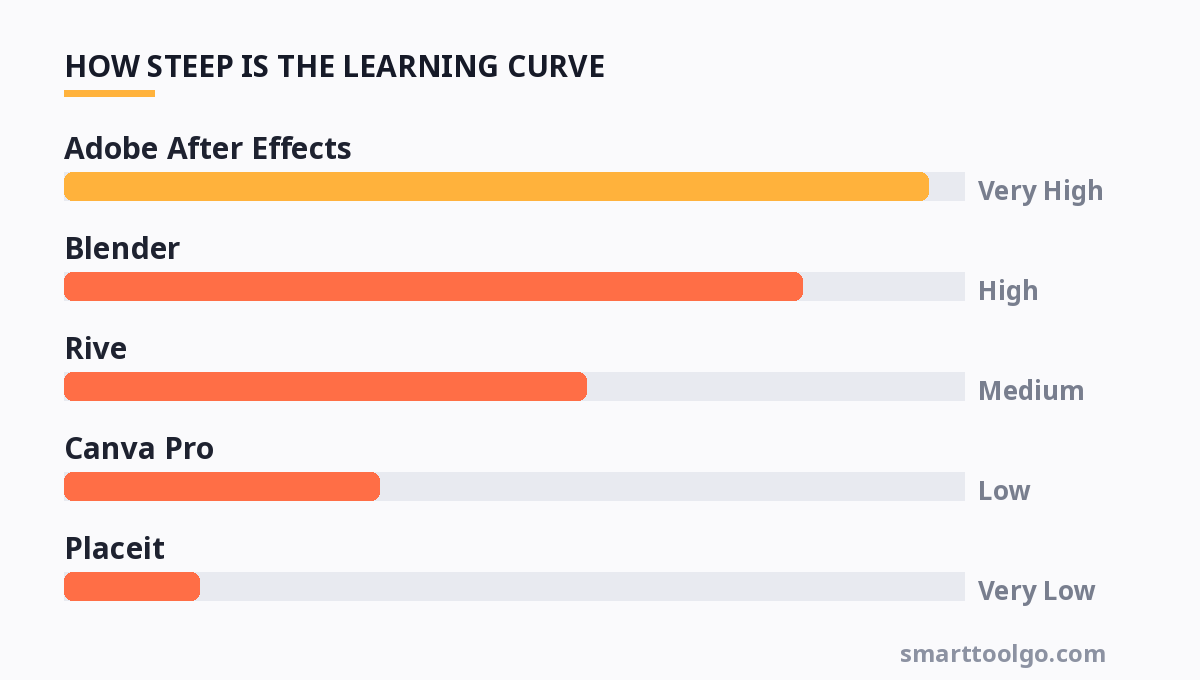
| Tool | Best For | Pricing (Monthly) | Learning Curve | Key Limitation |
|---|---|---|---|---|
| Adobe After Effects | Full control, complex VFX | $20.99 (Single App) | Very High | Subscription cost & time investment |
| Blender | 3D logo animations | Free (Open Source) | High | Non-intuitive interface |
| Rive | Interactive web/app animations | Free (Starter) / $25 (Creator) | Medium | Advanced features require coding |
| Canva Pro | Quick social media animations | $12.99 | Low | Limited creative control |
| Placeit | One-off template mockups | $14.96 | Very Low | High risk of "template look" |
| Motion Array | AE template access | $19.99 | Medium (requires AE) | Requires After Effects to edit |
As you can see, the "best" tool is entirely subjective to your skill level and budget. If you are a beginner, spending $20 on After Effects is a waste of money if you don't know how to use it. Conversely, a professional designer would find Canva’s limitations too restrictive. For those of you working on a broader project, you might also need to create a presentation to pitch the new brand identity—check out this list of Presentation Tools to ensure your deck matches the quality of your new motion graphics.
Practical Tips for a Successful Logo Animation
Once you’ve chosen your tool, the technical work begins. But before you start dragging keyframes, consider the psychology of the motion. Speed is critical. A logo animation for an intro should be between 2-4 seconds maximum. Anything longer feels like a commercial break. For a loading screen, keep it under 1.5 seconds.
Next, think about the easing. In most professional tools, the default linear movement looks robotic. Always apply an "ease-in" and "ease-out" to your keyframes. This mimics natural physics—things in the real world don't just stop instantly; they decelerate. This small tweak is the difference between a cheap Windows Movie Maker effect and a premium feel. Finally, ensure your animation looks good in a square format. Many people animate for widescreen but forget that the logo will often be used as a circular avatar on social media. Keep the inner 80% of your canvas clear of critical elements.
Workflow Optimization: Template vs. Custom
Don't feel like a fraud for using templates. Even top agencies use them for initial client pitches. The trick is to customize the template so it doesn't look like a template. Change the easing, alter the timing, play with the scale, and swap the background texture. If you are using Motion Array or Placeit, spend at least 30 minutes tweaking the color palette and speed. If you are using After Effects, learn how to use the "Graph Editor" to modify the velocity of the motion. This is where you inject the "soul" into the animation. For a deeper dive into the technical side of creative generation, you can look at the fundamentals discussed in this Ai Art Prompts Guide, which applies similar logic to generating assets that match your motion style.
For more, check out: and logo animation tools 2026.
For more, check out: .
For more, check out: .
Frequently Asked Questions
Q: Can I animate my logo for free without watermarks?
Yes. Blender is 100% free with no watermarks. Canva offers a free tier, but it lacks the transparent background export and premium animation effects. Rive also has a free tier that allows for publishing, though it is limited in features.
Q: What file format should I export for a transparent background?
For web use, export as a WebM or GIF (if you need legacy support). For video editing, export as ProRes 4444 or an MOV with an alpha channel. MP4 does not support transparency; you'll get a black or white background.
Q: I only have a PNG logo. Can I still animate it?
Absolutely. Most tools allow you to import a PNG and manipulate its scale, rotation, and position. However, you cannot animate the "parts" of the logo (like a wing flapping) unless you have the layers separated (PSD or SVG). If you only have a PNG, stick to reveals, bounces, or glitch effects.
Q: Is After Effects worth the money for a beginner?
Not immediately. Start with Canva or Rive to understand the principles of timing and easing. Once you hit the limitations of those tools (usually within 3-6 months), then invest in After Effects and take a structured course. Buying AE before you understand motion theory is a recipe for frustration.
Q: How long does it take to animate a logo?
Using Placeit, about 5 minutes. Using Canva, about 15 minutes. Using After Effects with a template, about 1 hour. Creating a custom animation from scratch in After Effects or Blender can take anywhere from 4 hours to 2 days, depending on the complexity of the 3D elements and particle effects.
Choosing the right tool is about matching the software to your current deadline and skill level. Don't buy the most expensive tool to look professional; buy the tool that lets you execute the vision you have in your head. And if you are looking to upgrade your entire digital toolkit this year, you might want to look at some practical upgrades in this guide to Tech Gifts That Dont Suck to ensure your hardware can handle the rendering load.
Get one practical tool tip a week
Short, useful, no spam. Unsubscribe anytime.