
Chroma keying—the technical term for what we call green screening—has evolved from a Hollywood-exclusive, multi-million dollar post-production technique into an accessible workflow for YouTubers, educators, corporate video teams, and even live-streaming gamers. However, the market is flooded with software, ranging from free, web-based utilities to subscription-heavy professional suites. The tool you choose dictates not only your budget but also your render times, edge quality, and whether you need a dedicated studio setup or can rely on AI to clean up a messy room.
This guide breaks down the current landscape of green screen tools, analyzing their specific strengths, weaknesses, and real-world pricing so you can stop wasting time on trial-and-error and get back to producing content.
1. The Hardware Prerequisite: Why Your Software is Only Half the Battle
Before diving into software, it is critical to address the physical setup. No algorithm—regardless of how advanced—can fix a poorly lit green screen. If you are experiencing "spill" (green light reflecting onto your shoulders) or inconsistent backgrounds, the issue is usually your lighting rig, not your codec.
For software to work effectively, your backdrop needs to be lit separately from your subject. You need a minimum of two lights on the green screen itself (to eliminate shadows) and a key light on you. If you are using a consumer webcam, ensure your camera is set to manual exposure to prevent the auto-exposure from shifting colors when you move. Once your physical setup is flawless, the software tools below will perform ten times better, particularly the AI-driven ones that rely on edge detection.
2. The Industry Standard: Adobe After Effects & Ultra Key
When discussing professional green screen tools, Adobe After Effects remains the benchmark. The built-in Keylight and Ultra Key effects are the workhorses of the industry. Ultra Key is particularly forgiving for beginners because it analyzes the image to find the dominant green hue automatically, whereas Keylight requires manual color picking.
Why it wins: The level of control is unmatched. You can adjust the "Clip Black" and "Clip White" sliders to fine-tune the alpha channel (transparency) pixel by pixel. For footage with motion blur or hair, After Effects offers advanced spill suppression that goes beyond simple desaturation.
Why it loses: The subscription model is aggressive. You must pay for the entire Creative Cloud suite or a single-app plan, which is overkill if you only need keying. Additionally, it is not real-time; you must render the composition to see the final result, which slows down the creative process significantly.
3. Real-Time Perfection: OBS Studio & Nvidia Broadcast
For live streamers and remote business presenters, real-time keying is non-negotiable. You cannot wait for a render queue when you are live on Twitch or in a Zoom meeting. This is where OBS Studio (Free) combined with Nvidia Broadcast (Free for RTX GPU owners) dominates.
OBS uses the Chroma Key filter, which is a simplified version of the algorithms found in After Effects. It works well if your lighting is flat and even. However, the real game-changer is Nvidia Broadcast's "Virtual Background" feature. This does not use traditional chroma keying; it uses AI semantic segmentation. This means you technically don't even need a green screen—it can cut you out of a messy room using depth and object recognition.
The Takeaway: If you are a streamer, do not buy expensive software. Use OBS for the traditional key and Nvidia Broadcast for the AI fallback. The AI approach is heavier on GPU usage, but it handles hair and transparency (like glass) far better than traditional color-based removal.
4. The AI-Powered Upsurge: Descript and Runway ML
The biggest shift in green screen tools over the last two years has been the move toward cloud-based AI processing. Tools like Descript and Runway ML have effectively eliminated the need for a physical screen in many scenarios.
Descript is primarily a video editor that transcribes your audio and lets you edit the video by editing the text. Its "Studio Sound" and "Background Removal" features are powered by AI. You simply drag a video in, click "Remove Background," and it uses a neural network to isolate you. There is no spill, and you don't need to manually tweak edges.
Runway ML goes a step further with its "Chroma Key" module, which utilizes machine learning to handle complex hair details. It processes the video in the cloud, meaning you can run it on a low-spec laptop. However, the downside is latency and cost—cloud processing is billed per second or per credit.
Related: If you are curious about how these neural networks understand color and depth, check out our Color Theory Guide to understand the science behind why green is used in the first place.
5. The Budget Champions: CapCut and iMovie
You do not need to spend a dime to get acceptable results for social media content. CapCut (Free with optional Pro tier) and iMovie (Free for Mac users) offer surprisingly robust chroma key features.
CapCut has become the go-to for TikTok and Instagram Reels creators. Its "Chroma Key" tool is located in the "Overlay" settings. It offers a simple "Strength" and "Shadow" slider. It is not sophisticated, but for short-form vertical video, it is lightning-fast. iMovie's green screen feature is similarly basic, but it operates locally and is incredibly stable. It lacks the ability to fine-tune edge mattes, so you must ensure your lighting is perfect during the shoot.
Verdict: These tools are perfect for "good enough" content. If you are a podcaster adding a b-roll background or a teacher recording a lesson, these free tools will save you money without sacrificing visible quality on a phone screen.
6. Comparison Table: Key Features and Real Pricing
To help you decide, here is a direct comparison of the most viable tools on the market today. Prices are accurate as of the writing of this article and reflect the entry-level paid tiers.
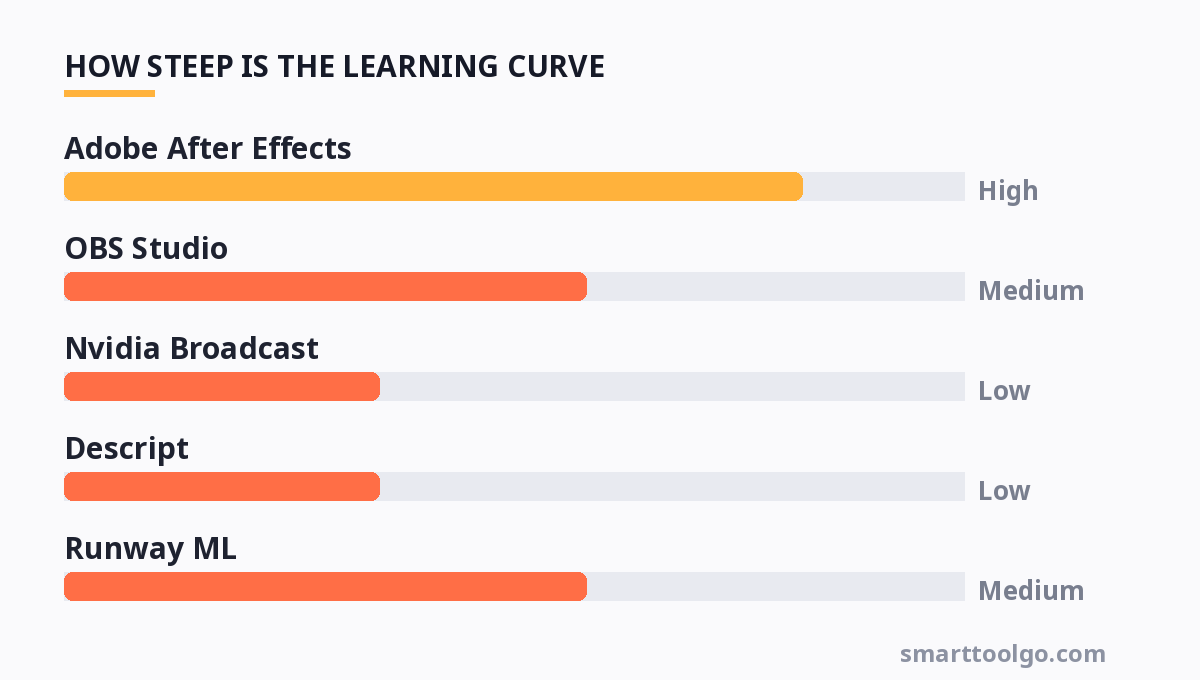
| Tool | Best For | Keying Method | Price (Entry Tier) | Real-Time? | Learning Curve |
|---|---|---|---|---|---|
| Adobe After Effects | Film, VFX, High-end YouTube | Color Spill / Edge Matte | $22.99/mo (Annual plan) | No (Render required) | High |
| OBS Studio | Live Streaming | Color Range Filter | Free (Open Source) | Yes | Medium |
| Nvidia Broadcast | Live Streaming (RTX GPUs) | AI Segmentation | Free (Hardware dependent) | Yes | Low |
| Descript | Podcasts, Business Videos | Cloud AI Segmentation | $12/user/mo (Annual) | No (Cloud Processing) | Low |
| Runway ML | Short Films, Creative AI | Cloud AI + Manual | $12/user/mo (Annual) | No (Cloud Processing) | Medium |
| CapCut | Social Media Shorts | Edge Color Removal | Free (Pro is $7.99/mo) | Yes (Preview) | Very Low |
Note: The "AI Segmentation" tools (Nvidia, Descript) are the only ones that can work effectively without a physical green screen, though they work best when a screen is present to provide contrast.
7. Practical Tips for Cleaner Keys
Regardless of which tool you select, the following workflow tips will save you hours of rotoscoping and frustration:
- Shoot at the highest bitrate: Compressed footage from your phone (H.264) often has "blocky" edges that are difficult to key. If possible, shoot in a high-bitrate mode (like ProRes on iPhone or 4:2:2 color sampling on DSLRs).
- Distance matters: Stand at least 5-6 feet away from the green screen to avoid spill and shadows. This gives the software more room to differentiate between the foreground and background.
- Use the "Spill Suppression" tool: Most pro tools have this feature. It removes the green tint from the edges of your hair and shoulders. In OBS, you can do this by adding a "Color Correction" filter and reducing the green gain slightly.
- Feather the edges: In After Effects, adding a slight "Choke" or "Soften" effect on the matte prevents the "cut-out paper" look.
If you are building a workflow that combines multiple tools, understanding how these algorithms interact with user interface design can help. For instance, the way you layout your OBS scenes or Premiere Pro timeline affects how you apply these effects globally. You can read more about optimizing your workspace in our guide on UI Design Tools to ensure your editing environment is as efficient as possible.
8. The Future: Virtual Production and AI
The line between "green screen" and "virtual production" is blurring. The industry is moving toward LED walls (like the Volume used in The Mandalorian) and AI-driven background replacement that doesn't require a solid color backdrop. However, for the average content creator, the green screen is not going away—it remains the cheapest, highest-quality way to get a clean alpha channel.
The biggest advancement to watch is the integration of AI into traditional editors. We are seeing tools like DaVinci Resolve implement neural engines that auto-create mattes. As AI becomes more embedded in these tools, the manual slider adjustments we discussed earlier will become obsolete. The shift is happening because of the massive compute power available in cloud rendering, which is also changing how we use online utilities. To understand this broader shift, explore how AI is transforming the future of online tools.
For more, check out: and screen recording.
For more, check out: .
For more, check out: .
Frequently Asked Questions
Q: Can I use a green screen tool without a physical green backdrop?
Yes. Tools like Nvidia Broadcast, Descript, and Zoom's background features use AI and depth mapping to detect your silhouette without a green screen. However, results are less reliable in low-light or when you wear clothing that blends with the background. A physical screen still provides the best pixel-perfect accuracy.
Q: Why is green used instead of blue?
Green requires less light to illuminate properly than blue and is less likely to match skin tones or wardrobe colors. Blue screens are still used in film when the shot contains green elements (like plants or a green prop). For a deeper dive into the science of color, refer to our Color Theory Guide.
Q: Do I need an expensive GPU for real-time green screening?
For OBS and Nvidia Broadcast, yes—specifically an Nvidia RTX GPU. For CapCut and iMovie, the CPU handles the load, and a mid-range processor is sufficient. Cloud-based tools (Descript/Runway) offload the work to their servers, so your GPU doesn't matter at all.
Q: Why is my green screen footage looking "glowy" around my hair?
This is called "spill." It happens because light bounces off the green screen and onto your hair. To fix it, adjust the "Spill Suppression" slider in your chosen tool. In a physical sense, moving your subject further from the screen and using a hair light (a light behind you) will
Get one practical tool tip a week
Short, useful, no spam. Unsubscribe anytime.