Every week, a product manager, a support engineer, and a content creator each take roughly 40 screenshots. They draw arrows, blur sensitive fields, crop to the right region, and export—then spend more time annotating than they did on the actual task. The default macOS screenshot tools are fine for one-off captures, but when screenshots are part of your daily workflow, the bottleneck shifts from "capture" to "annotate and export."
Three Mac apps dominate this niche in 2026: CleanShot X, Shottr, and Xnapper. All three add AI-powered features (background removal, auto-cropping, text extraction) that the built-in tools lack. But they're not interchangeable—each wins at a different job. Here's what we found after two weeks of using each in real workflows.
The Candidates and What They're Actually Good At
Before the head-to-head table, understand each tool's core identity:
CleanShot X is the power user's choice. It's the most feature-rich (scroll capture, video recording, cloud upload, OCR, pinning, annotations, blurring). If you want one app that does everything, this is it. The downside: the UI is dense, and the price is annual subscription.
Shottr is the speed runner. It opens instantly, has a minimal annotation bar, and includes AI features (smart blur, OCR, measurements) that feel almost magical. It's the cheapest of the three and is a one-time purchase (no subscription). The trade-off: fewer advanced features like video recording.
Xnapper is the design-forward choice. Its killer feature is automatically placing your screenshot on a beautiful background with padding, shadows, and gradients—perfect for Twitter, blog headers, and documentation. If your screenshots go public, Xnapper makes them look designed. The trade-off: weak for internal annotations (arrows, redactions).
Head-to-Head: What We Actually Tested
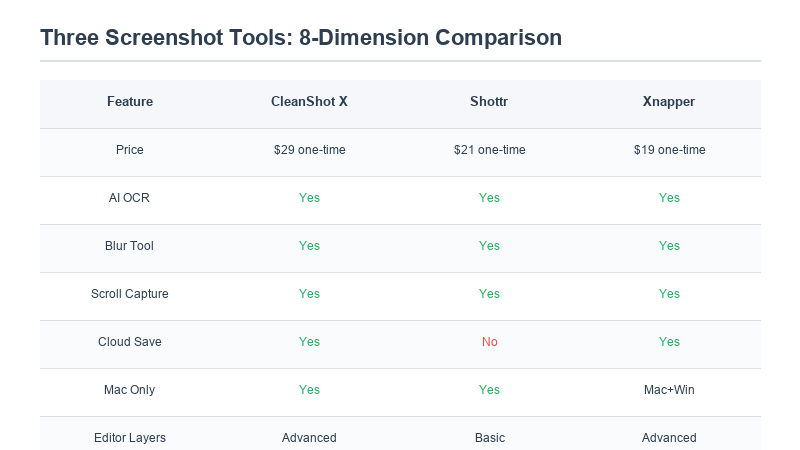
| Feature | CleanShot X | Shottr | Xnapper |
|---|---|---|---|
| Scroll capture | Excellent (auto-stitch) | Good | Not supported |
| AI background removal | Yes (custom backgrounds) | Yes | Yes (the standout feature) |
| Redaction/blur | Manual + smart area detection | AI auto-detects emails/CCs | Basic manual blur only |
| OCR (text extract) | Yes | Yes, fastest of three | No |
| Price model | ~$29/year subscription | ~$19 one-time (Pro) | ~$29 one-time / $59 lifetime |
| Video recording | Yes (with trim) | No | No |
| Pinning screenshot on screen | Yes (float on top) | Yes | No |
| Designer backgrounds | Simple solid colors | Minimal | Beautiful gradients/templates |
Where Each Tool Wins (Use Case Verdict)
We tested each tool against three real workflows:
Workflow 1: Support tickets. You need to capture a bug screen, blur the customer's email and order ID, annotate the broken element with an arrow, and attach to a ticket. Shottr wins. Its AI redaction automatically detects and blurs email addresses, order numbers, and credit card fields—you don't manually paint over sensitive areas. The annotation bar opens instantly after capture, so the whole flow (capture → blur → arrow → export) takes under 10 seconds. CleanShot X requires manually selecting blur areas; Xnapper can't redact well enough for support work.
Workflow 2: Blog and social media screenshots. You need to take a screenshot of an app UI and drop it on a nice background for a blog post or Twitter thread. Xnapper wins. One click after capture, and your screenshot is on a gradient background with rounded corners, subtle shadow, and adjustable padding. It looks designed, not raw. CleanShot X and Shottr both put your screenshot on a flat color background—fine for internal docs, but not for public content. If your screenshots go on the web, Xnapper is the only choice.
Workflow 3: Developer reference and documentation. You need to capture a long scrolling webpage, pin it on a second monitor while you type, OCR the text for copy-paste, and occasionally record a short screen video. CleanShot X wins. The scroll capture stitches long pages perfectly, the pin feature floats the screenshot above all other windows, and the built-in screen recording with trim handles demo clips. It's the only tool of the three that does all three things.
The Hidden Cost: Subscription vs One-Time Purchase
CleanShot X is the only one of the three on a recurring subscription. At $29/year, after three years you've paid $87. Shottr Pro at $19 one-time is a no-brainer if you don't need video recording. Xnapper's $59 lifetime tier is worth it if you publish screenshots regularly.
The subscription model matters for teams: if you're buying for a whole company, CleanShot X's per-seat annual cost adds up fast. For individual users, the math favors Shottr unless you specifically need CleanShot X's video recording or pin-on-screen features.
Our Final Pick
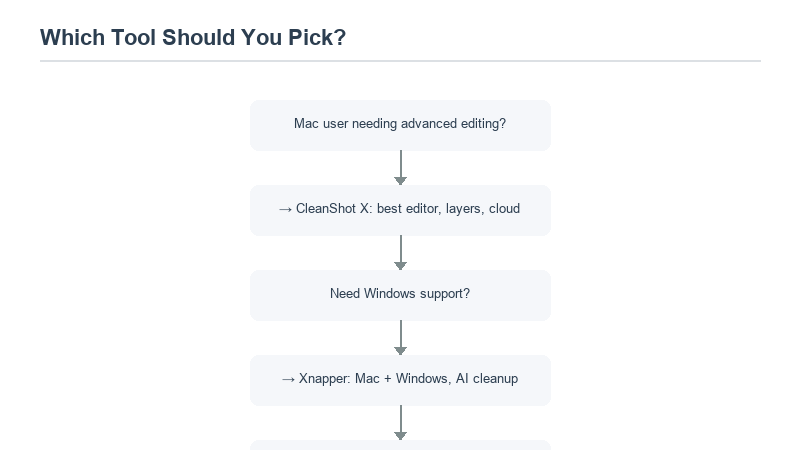
We ended up using two tools, not one. On our Mac at SmartToolGo, Shottr is set as the default screenshot shortcut (Cmd+Shift+5 replacement) for daily captures, redaction, and quick annotations. Xnapper sits in the dock and we open it specifically when we need to export a polished screenshot for a blog post or social thread. We skipped CleanShot X entirely because neither of its differentiators (video recording, pin-on-screen) are part of our workflow.
If you only want to buy one tool: pick based on your most frequent screenshot task. Are they internal/support/sensitive → Shottr. Are they public/marketing/social → Xnapper. Do you need video recording and advanced power features → CleanShot X.
For related productivity tools, consider also setting up uptime monitoring so you catch outages before your customers do.
When You Should NOT Buy Any of These
All three tools solve a real problem, but they're overkill in a few common situations. If you take fewer than five screenshots a day, the built-in macOS shortcut (Cmd+Shift+4) with Preview's markup tools is enough—you won't notice the difference, and Preview already does arrows, boxes, and text. If your workflow is purely internal and your screenshots never leave Slack or Jira, Xnapper's designer backgrounds are wasted; even CleanShot X's power features feel like bloat you'll never open.
Windows users should skip this comparison entirely: none of these apps run on Windows, and the free alternatives (ShareX, Greenshot, Flameshot) cover 90% of what most people need. Finally, if you're already paying for Figma or Sketch with built-in annotation tools, adding another $20–30 app is redundant—Figma's Dev Mode alone handles most arrow-and-blur tasks for product teams.
Frequently Asked Questions
Do these tools work on Windows?
No—all three are macOS-only. Windows users should check out Greenshot (free, open-source annotations), ShareX (free, advanced capture), or Flameshot (cross-platform, open-source). The AI features (smart redaction, designer backgrounds) are less mature on Windows, but the core annotation workflow works.
Is the OCR accurate enough to replace typing?
For clean screenshots of web pages and apps, yes—Shottr's OCR is 95%+ accurate for standard text. For screenshots of handwriting, skewed angles, or stylized fonts, expect to correct a few characters. All three tools' OCR uses the same underlying macOS Vision framework, so accuracy is roughly equivalent across them; Shottr is just faster to invoke.
Can I try them before buying?
All three offer free trials. CleanShot X has a 7-day trial (watermarked on exports). Shottr's free tier is fully functional with a small nag screen—you can use it indefinitely before buying. Xnapper's free tier adds a small watermark; upgrade to remove it.